Case Lookup
The Case Lookup feature lets you search for cases in your court's system — whether or not they have active filings in the review queue. Use it to check case history, review parties, or look up documents from past filings.
Searching for a Case
Navigate to Case Lookup from the sidebar.
Enter a case number or case title in the search box and press Enter or click search.
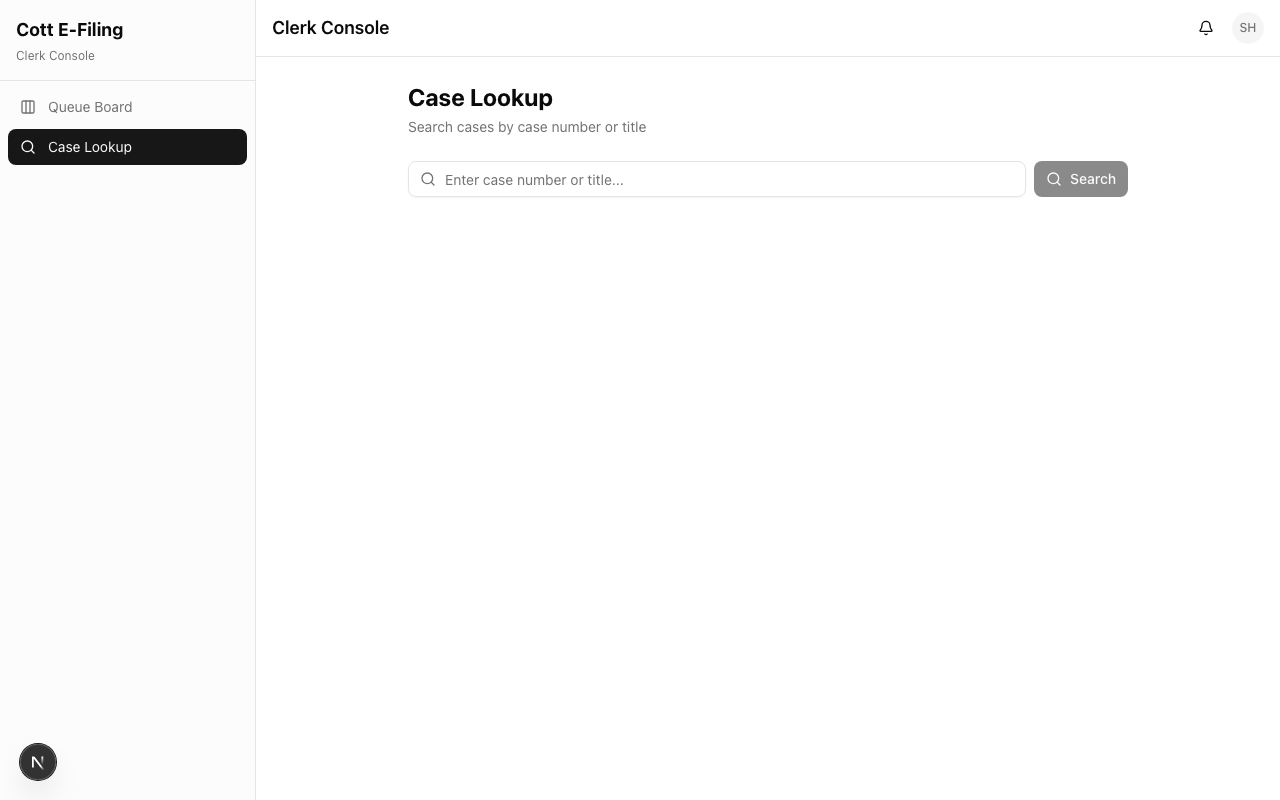
Search results show:
- Case Number
- Case Title
- Case Type
- Filed Date
- Status — Open or Closed
Click on a case to open the full case view.
No results? Try different search terms. If searching by case number, make sure you're using the full number format (e.g., "2025-CV-01234").
Case View
The case view gives you a comprehensive look at the case record.
Header
Shows the case title, case number, court, case type (and sub-type if applicable), filed date, and status.
Tabs
Timeline — A chronological view of all events on the case, including filings, court actions, and status changes. Each entry shows the event code, date, and description.
Parties — All parties associated with the case:
- Name and role (Plaintiff, Defendant, etc.)
- Active or Inactive status
- Contact information (email, phone, address) when available
Documents — All documents that have been filed on the case:
- Document title and filename
- File size
- Date filed
Filings — Every filing envelope submitted for this case:
- Filing number and status
- Date submitted
- Document count
- Review button to jump to the review page for filings that need attention
Bench Book
From the case view, click Generate Bench Book to create an assembled document containing:
- Cover page — case number, title, court, and judge
- Table of contents — all documents listed with page numbers
- Assembled documents — all case documents combined into one PDF
This is useful for preparing case files for judge review or hearings.